Buy Microsoft licenses in Brazil
Genuine Microsoft Windows, Office, 365, Server and developer licenses delivered digitally to Brazil — local payment methods, local-tax handling and 14-day refund window.

Accepted payment methods
- Visa
- Mastercard
- American Express
- PayPal
- Pix
- Boleto
- Elo
- Apple Pay
- Google Pay
Tax & invoicing
No sales tax collected on digital cross-border deliveries to Brazilian consumers.
Prices are billed in EUR. Approximate BRL conversion shown for context only — your bank applies the final rate.
Delivery
Your license key arrives by email within 5–30 minutes of payment confirmation, with a link to the official Microsoft installer and a step-by-step PDF.
Support hours
Email support 24/7 — replies within 60 minutes between 09:00–22:00 BRT.
Refund window: 14-day no-questions refund on unused, undelivered or unactivated keys — see refund policy for the full conditions.
Most popular in Brazil
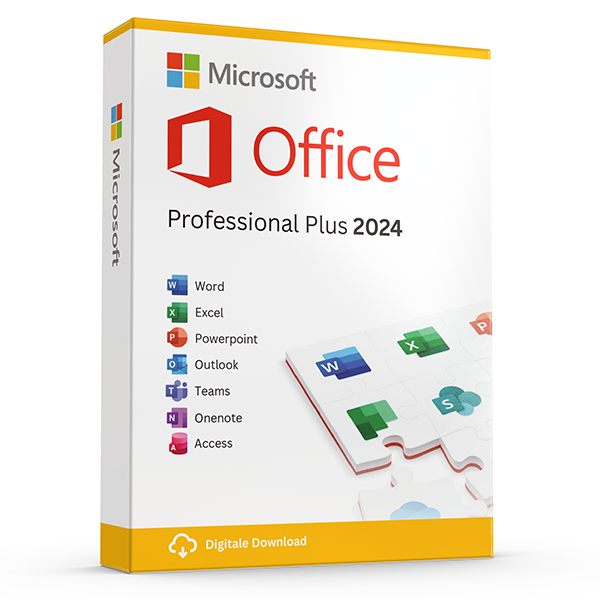
Office Professional Plus 2024 — 1 PC
Perpetual · 1 PC · Windows
The latest perpetual Office suite for one Windows PC.
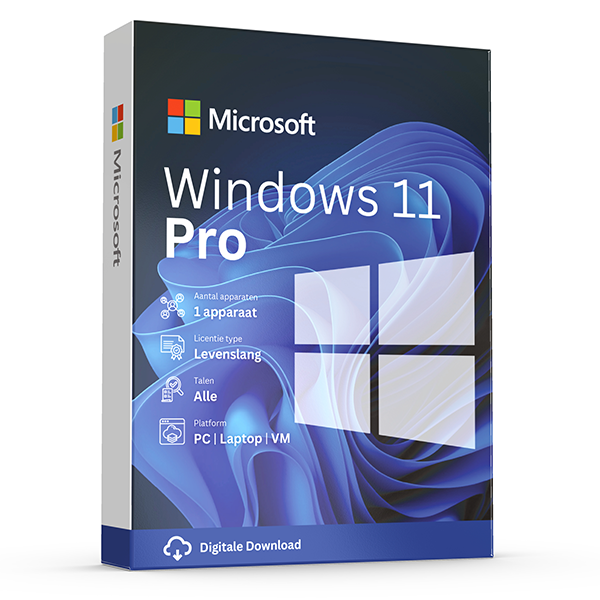
Windows 11 Pro
Retail · 1 PC · Lifetime
Professional edition with BitLocker, Hyper-V and Remote Desktop.
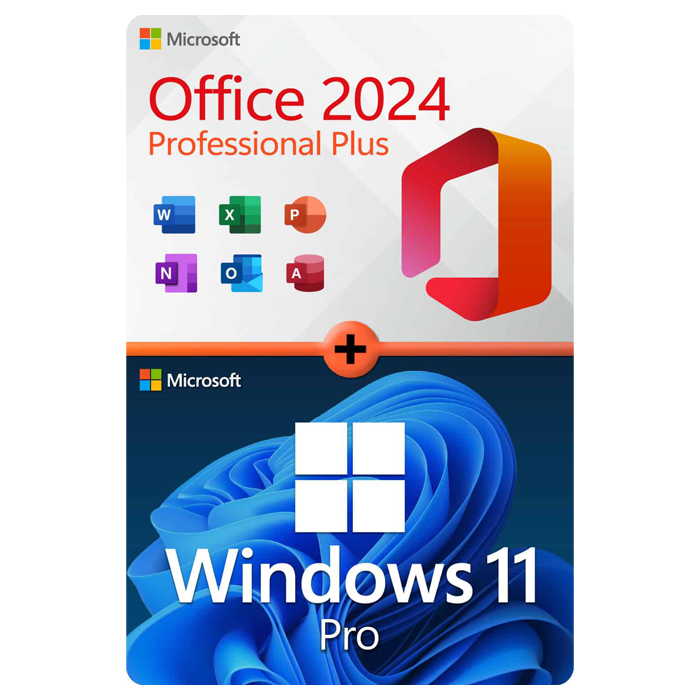
Office Professional Plus 2024 + Windows 11 Pro
1 PC · Lifetime
The complete productivity combo — Office 2024 and Windows 11 Pro in one package.
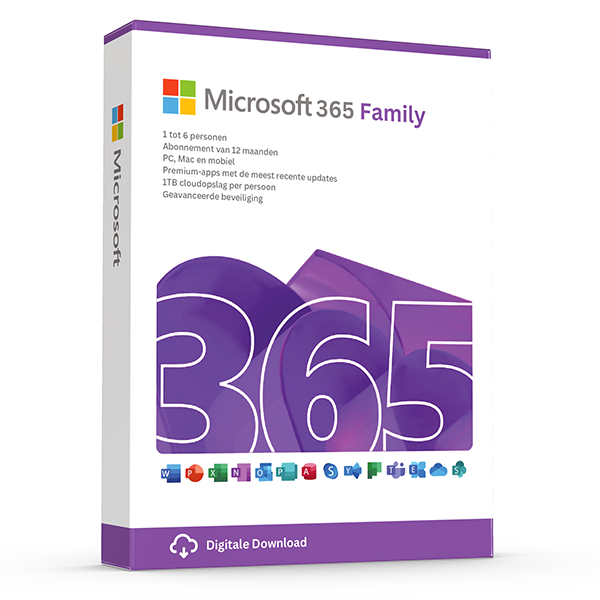
Microsoft 365 Family — 6 users · 30 devices
6 users · 1 year · 30 devices
Premium Office for up to 6 people with 1 TB OneDrive each.
≈ R$205.91 BRL — $35 prices are billed in eur. approximate brl conversion shown for context only — your bank applies the final rate.
Trusted by buyers in Brazil
São Paulo · Rio de Janeiro · Brasília · Belo Horizonte · Porto Alegre · Curitiba
Check whether checkout completed before trying again
If a purchase page fails to load, first establish whether you were browsing, submitting payment, or viewing an order confirmation. A display error does not prove that a payment failed or that an order was created. Check your email, including spam folders, and any available account order history before submitting another payment. Compare the product, amount and transaction time so that an older confirmation is not mistaken for the current attempt.
If your payment provider shows a pending transaction but you have no order confirmation, avoid assuming that the charge is final. Pending authorisations and completed payments are different states, and their handling depends on the provider. Preserve the transaction reference and the approximate time of the error, then use the retailer's published contact route to request clarification. Do not send a full card number, account password or complete software key in an initial enquiry.
- Check order history and email before repeating checkout.
- Record the error message and the time it appeared.
- Distinguish a pending authorisation from a completed payment.
- Redact payment details and product keys from screenshots.
- If no payment was involved, retry through the site's main navigation.
Match the licence to the product and intended use
Before buying, identify the exact application or operating system, its edition, and the device on which it will run. Windows Home and Windows Pro are different editions; a Home key should not be expected to activate Pro. Microsoft 365 subscriptions and perpetual Office products also provide different rights and servicing arrangements. A perpetual purchase does not automatically include future major releases, while subscription features depend on the particular plan and an active subscription.
Use Microsoft's terms for the exact product and acquisition channel to verify device limits, permitted users and commercial-use rights. Do not infer those rights from a product name alone: consumer subscriptions and business plans are not interchangeable, and perpetual Office editions can have different use restrictions. For workplace purchases, also check whether the organisation already has an entitlement. A discounted key is not a substitute for establishing that the licence covers the intended deployment.
- Confirm the exact Windows edition before purchasing a key.
- Check Office platform support and required applications.
- Distinguish subscription access from a perpetual version licence.
- Verify device limits and commercial-use rights in the applicable terms.
- Check system requirements separately from licensing eligibility.
Diagnose activation problems without exposing your key
For Windows activation problems, start with the installed edition and the exact error code rather than repeatedly entering the key. In Windows 11, open Settings, then System, then Activation; in Windows 10, open Settings, then Update & Security, then Activation. Check that the edition matches your entitlement and that the device has internet access. Where available, use the Activation troubleshooter, particularly after a hardware change involving a device with a digital licence.
Office activation requires a separate check. For products associated with a Microsoft account, sign in with the account used to redeem or obtain the licence, not merely any account available on the computer. An Office application may show an unlicensed-product warning when its installed edition or signed-in account does not match the entitlement. Use Microsoft's official download and activation instructions for that product. Avoid third-party activation scripts, which cannot create a legitimate licence entitlement.
- Record the complete error code, but keep the key private.
- Check the installed product and edition before reinstalling.
- Use the Microsoft account associated with the relevant entitlement.
- Do not disable security software to run an activation utility.
- Unexpected workplace activation prompts on a personal purchase need clarification.
Understand reinstallations, transfers and licence evidence
Reinstalling software on the same device and transferring it to another device are different licensing questions. Under Microsoft's Windows terms, software acquired preinstalled on a device generally transfers to another user only with that licensed device. Stand-alone Windows software generally permits transfer to another device you own, subject to the applicable terms and removal from the previous device. Check the actual acquisition channel rather than assuming that every key advertised as retail carries identical rights.
A motherboard replacement can affect Windows activation, even when other components remain unchanged. Linking a digital licence to a Microsoft account can help with reactivation through the troubleshooter, but it does not turn a device-bound licence into a transferable one. Keep the invoice, product description and applicable licence documentation alongside your account records. Microsoft distinguishes activation from licensing: successful activation by itself does not establish that software is genuine or properly licensed.
- Confirm transfer rights before replacing a computer.
- Do not treat account linking as permission to transfer a licence.
- Remove the previous installation when the transfer terms require it.
- Check Office transfer terms separately from Windows terms.
- Retain purchase evidence without publishing the product key.
- Organisational volume-licensing rights depend on the relevant agreement.
Reference checks before purchasing or reactivating Microsoft software
| Situation | First check | Important limitation |
|---|---|---|
| Reinstalling Windows on the same computer | Confirm the previously licensed edition and activation status. | A digital licence for one edition does not automatically cover another edition. |
| Moving preinstalled Windows to another computer | Read the terms for the device's preinstalled licence. | Preinstalled Windows generally transfers to another user only with the licensed device. |
| Moving stand-alone Windows to a replacement computer | Verify the acquisition channel and applicable transfer terms. | A permitted transfer requires removal from the previous device. |
| Choosing perpetual Office | Check included applications, platform, device limits and use rights. | Future major versions are not automatically included. |
| Choosing Microsoft 365 | Check the exact plan, permitted users and device-use rules. | Subscription benefits and full application functionality depend on an active qualifying subscription. |
| Buying software for an organisation | Check existing entitlements and the applicable commercial agreement. | Possessing a volume activation key does not independently establish licensing rights. |
Frequently asked questions
Are these licenses valid in Brazil?
Yes. All keys are genuine Microsoft licenses, activate against Microsoft's worldwide servers, and carry no geographic restrictions.
Do I pay local tax?
No sales tax collected on digital cross-border deliveries to Brazilian consumers.
How fast is delivery?
5–30 minutes by email after payment confirmation, 24/7. Most orders arrive in under 10 minutes.
What happens if a key fails to activate?
We replace it free of charge or refund in full. Every key is covered by our lifetime activation guarantee.