Buy Microsoft licenses in Canada
Genuine Microsoft Windows, Office, 365, Server and developer licenses delivered digitally to Canada — local payment methods, local-tax handling and 14-day refund window.

Accepted payment methods
- Visa
- Mastercard
- American Express
- PayPal
- Interac
- Apple Pay
- Google Pay
Tax & invoicing
Canadian GST 5% (plus provincial HST/PST where applicable) included on orders to CA billing addresses.
Prices are billed in EUR. Approximate CAD conversion shown for context only — your bank applies the final rate.
Delivery
Your license key arrives by email within 5–30 minutes of payment confirmation, with a link to the official Microsoft installer and a step-by-step PDF.
Support hours
Email support 24/7 — replies within 60 minutes between 09:00–22:00 ET.
Refund window: 14-day no-questions refund on unused, undelivered or unactivated keys — see refund policy for the full conditions.
Most popular in Canada
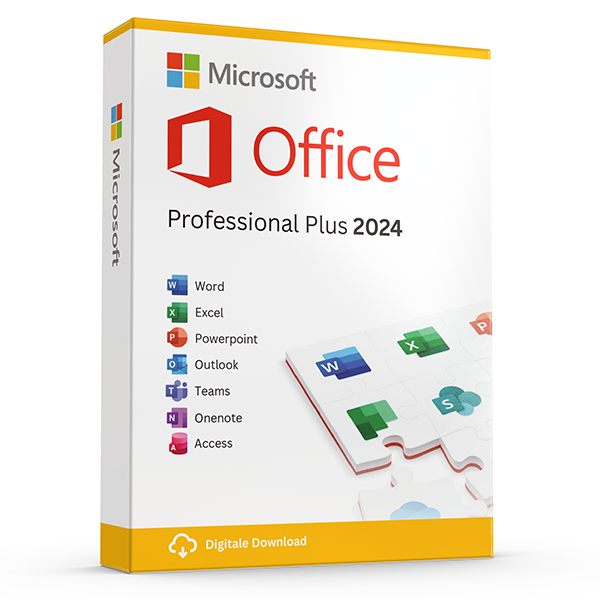
Office Professional Plus 2024 — 1 PC
Perpetual · 1 PC · Windows
The latest perpetual Office suite for one Windows PC.
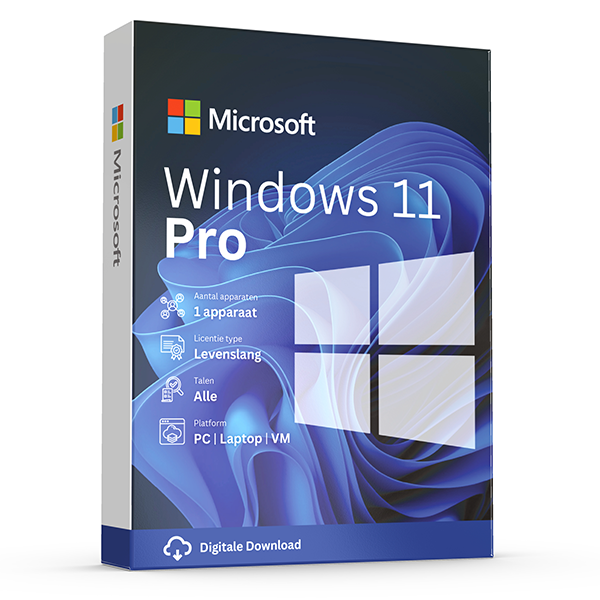
Windows 11 Pro
Retail · 1 PC · Lifetime
Professional edition with BitLocker, Hyper-V and Remote Desktop.
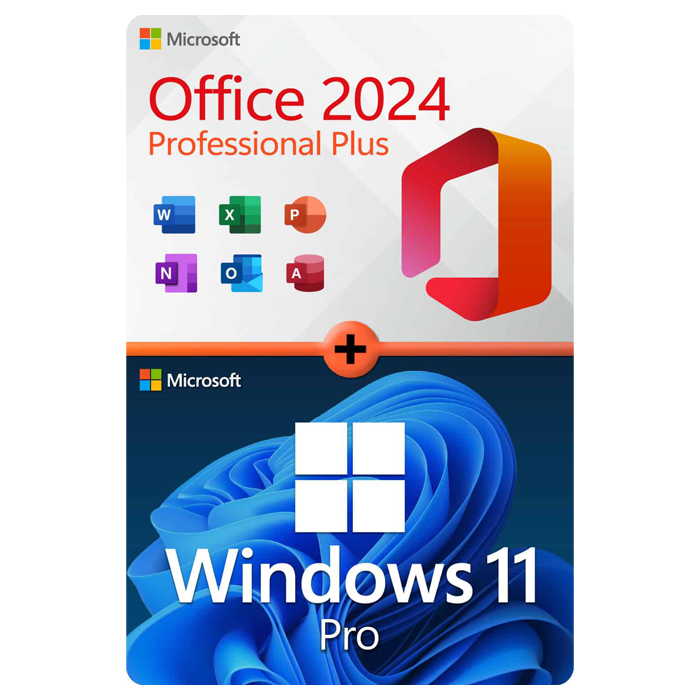
Office Professional Plus 2024 + Windows 11 Pro
1 PC · Lifetime
The complete productivity combo — Office 2024 and Windows 11 Pro in one package.
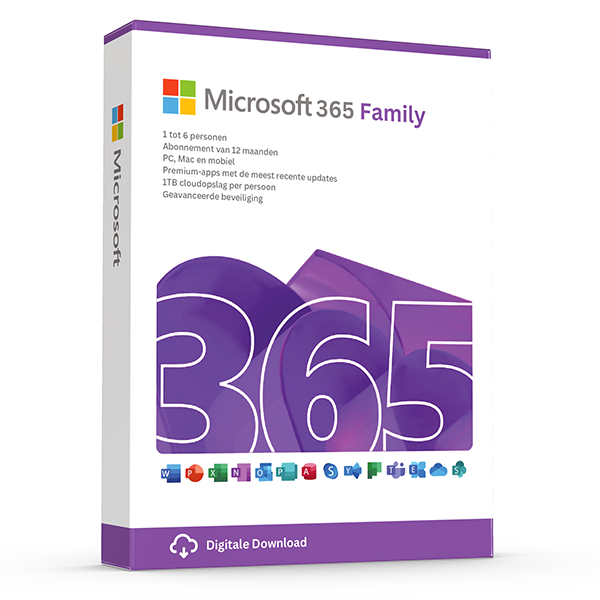
Microsoft 365 Family — 6 users · 30 devices
6 users · 1 year · 30 devices
Premium Office for up to 6 people with 1 TB OneDrive each.
≈ C$51.65 CAD — $35 prices are billed in eur. approximate cad conversion shown for context only — your bank applies the final rate.
Trusted by buyers in Canada
Toronto · Montréal · Vancouver · Calgary · Ottawa · Edmonton
Identify the product, edition and platform before choosing a key
Start with the software already installed, not the name on a listing. In Windows, open Settings, then System, then About, and check the edition and system type. For an installed Office application, open its account or product information screen to identify the product. Match that information against the licence you intend to acquire. A Windows Home key does not activate Windows Pro, and an Office purchase does not include a Windows licence.
Next, decide whether you need a new licence, an edition upgrade or a subscription renewal. These are different transactions and may have different prerequisites. For Office, confirm the operating system, included applications and whether the offer is a one-time purchase or Microsoft 365 subscription. A one-time Office purchase covers its specified version rather than automatically granting future major releases. Check Microsoft's current system requirements before paying, especially when upgrading an older computer.
- Record the exact product name, version and edition.
- Check whether the licence covers Windows, macOS or both.
- Confirm that essential applications are included in the named suite.
- Distinguish a full licence from an upgrade requiring qualifying software.
- Do not assume a licence purchase makes unsupported hardware compatible.
Check licensing rights separately from the product key
A product key is an activation credential, not a complete description of your usage rights. Microsoft's applicable licence terms determine who may use the software, on which devices and under what transfer conditions. Successful activation alone does not establish that a licence was acquired legitimately or that a particular deployment is permitted. Before buying, identify the licensing channel and obtain documentation describing the product, licence type and any qualifying requirements, rather than relying only on a key's availability.
Retail, preinstalled OEM and commercial volume licensing are not interchangeable. Under Microsoft's standard Windows terms, preinstalled software generally transfers to another user only with the licensed device, while stand-alone software has different transfer provisions. Commercial licensing can depend on an organisation's agreement, assignment rules and qualifying operating systems. A MAK or KMS activation method does not by itself establish an individual buyer's entitlement. Consult Microsoft's Software License Terms or Product Terms, as applicable, for the specific purchase.
- Ask which licensing channel applies before purchase.
- Retain the invoice, product description and licence documentation.
- Treat activation status and legal entitlement as separate checks.
- For organisational purchases, verify the governing agreement and assignment rules.
- Check any geographic restrictions stated for the specific offer.
Activate safely and diagnose failures in the right order
Use Microsoft's official installation media and activation interfaces wherever available. For Windows 11, activation settings are under Settings, System, Activation; for Windows 10, they are under Settings, Update & Security, Activation. Check the installed edition before entering a key. For Office purchases that require redemption, follow Microsoft's official redemption process and use the intended Microsoft account. Keep access to that account secure, because it may be needed to reinstall or manage the associated product later.
If activation fails, preserve the exact error code before making changes. Confirm internet connectivity, correct date and time, and whether the installed product matches the licence. A failure can reflect an edition mismatch, a hardware change, an account issue or a problem with the key; it is not automatically proof of one particular cause. Use Microsoft's activation guidance or built-in troubleshooter where applicable. Avoid repeated reinstallations until you know what the error actually indicates.
- Record the error code and the product's activation status.
- Never publish a full product key in screenshots or public forums.
- Use the Microsoft account associated with the product, where required.
- Do not use cracks, activation bypasses or untrusted activation servers.
- Ask Microsoft or the seller to investigate unresolved key-specific errors.
Plan for reinstallations, hardware changes and device transfers
Reinstalling Windows on the same device is different from transferring a licence to another computer. Where a device already has a digital licence, reinstalling the same Windows edition can usually reactivate online without entering a key. A major hardware change, particularly replacing the motherboard, can interrupt that recognition. Linking an eligible digital licence to your Microsoft account can help with the activation troubleshooter, but it does not expand the transfer rights granted by the licence.
Before moving software, read the transfer clause for that specific product and acquisition channel. Microsoft's standard stand-alone Windows terms allow transfers subject to conditions, including removing the software from the previous device; preinstalled Windows generally stays with its licensed device. Office products and Microsoft 365 plans have their own assignment, installation and usage rules. Do not assume that signing into an account, uninstalling an application or possessing the original key automatically authorises installation on an additional computer.
- Back up files before reinstalling or changing major hardware.
- Record the edition, activation status and associated account beforehand.
- Check transfer rights before retiring or selling the old computer.
- Remove the old installation when the applicable transfer terms require it.
- Verify virtual-machine rights separately; a host licence is not blanket guest coverage.
Licensing routes: what to verify before purchase or deployment
| Licensing route | Key consideration | Check before proceeding |
|---|---|---|
| Stand-alone Windows retail licence | Transfer rights differ from those for preinstalled software. | Read the applicable transfer clause and remove the previous installation when required. |
| Windows preinstalled on a device | The licence generally remains with the licensed device. | Do not assume the key can be moved independently to another computer. |
| One-time Office purchase | Covers the specified product version, not automatic future major releases. | Verify included applications, platform, device allowance and transfer terms. |
| Microsoft 365 subscription | Usage rights and included services depend on the plan and an active subscription. | Check user assignment, installation allowances and permitted use for the named plan. |
| Commercial volume licensing | Entitlement comes from the applicable agreement, not merely a MAK or KMS activation. | Verify organisational eligibility, licence assignment and any qualifying software requirements. |
Frequently asked questions
Are these licenses valid in Canada?
Yes. All keys are genuine Microsoft licenses, activate against Microsoft's worldwide servers, and carry no geographic restrictions.
Do I pay local tax?
Canadian GST 5% (plus provincial HST/PST where applicable) included on orders to CA billing addresses.
How fast is delivery?
5–30 minutes by email after payment confirmation, 24/7. Most orders arrive in under 10 minutes.
What happens if a key fails to activate?
We replace it free of charge or refund in full. Every key is covered by our lifetime activation guarantee.