Buy Microsoft licenses in Japan
Genuine Microsoft Windows, Office, 365, Server and developer licenses delivered digitally to Japan — local payment methods, local-tax handling and 14-day refund window.

Accepted payment methods
- Visa
- Mastercard
- JCB
- American Express
- PayPal
- Konbini
- Apple Pay
- Google Pay
Tax & invoicing
Japanese consumption tax 10% included on orders to JP billing addresses.
Prices are billed in EUR. Approximate JPY conversion shown for context only — your bank applies the final rate.
Delivery
Your license key arrives by email within 5–30 minutes of payment confirmation, with a link to the official Microsoft installer and a step-by-step PDF.
Support hours
Email support 24/7 — replies within 60 minutes between 09:00–21:00 JST.
Refund window: 14-day no-questions refund on unused, undelivered or unactivated keys — see refund policy for the full conditions.
Most popular in Japan
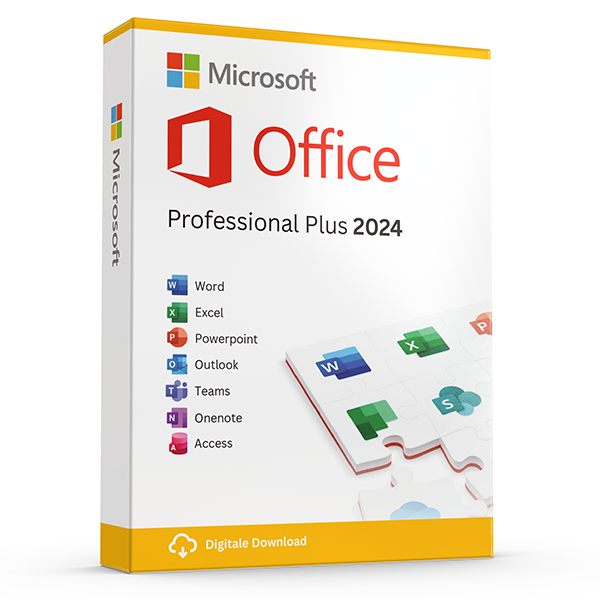
Office Professional Plus 2024 — 1 PC
Perpetual · 1 PC · Windows
The latest perpetual Office suite for one Windows PC.
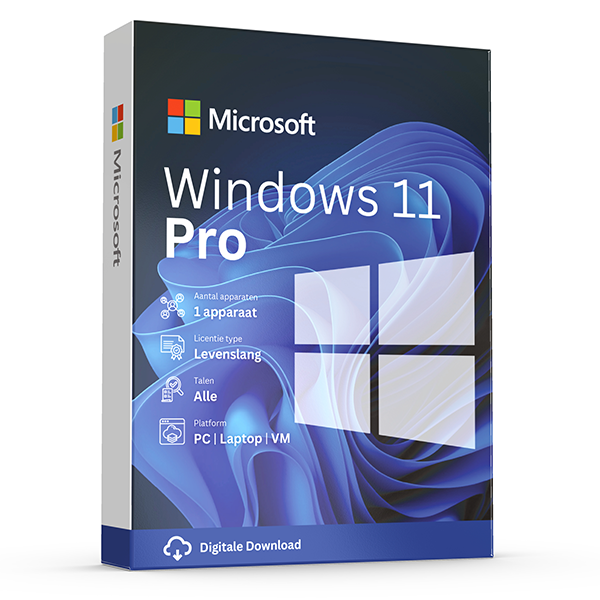
Windows 11 Pro
Retail · 1 PC · Lifetime
Professional edition with BitLocker, Hyper-V and Remote Desktop.
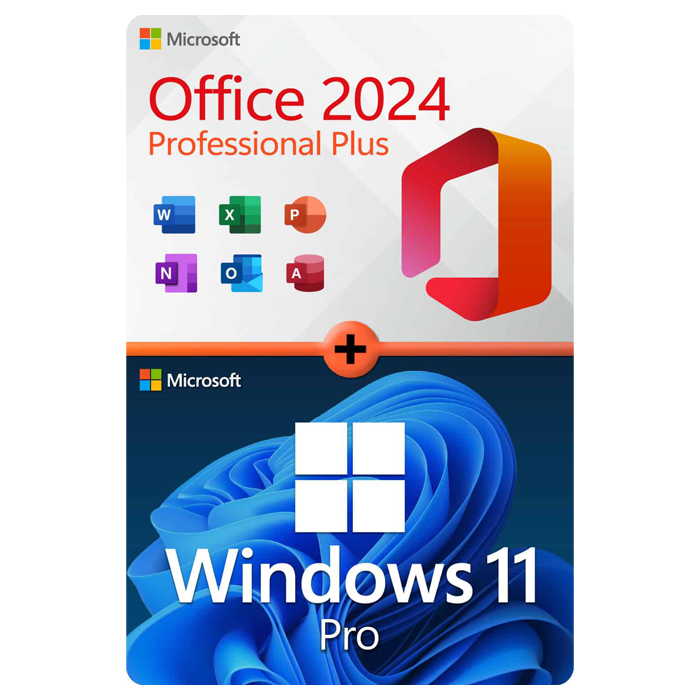
Office Professional Plus 2024 + Windows 11 Pro
1 PC · Lifetime
The complete productivity combo — Office 2024 and Windows 11 Pro in one package.
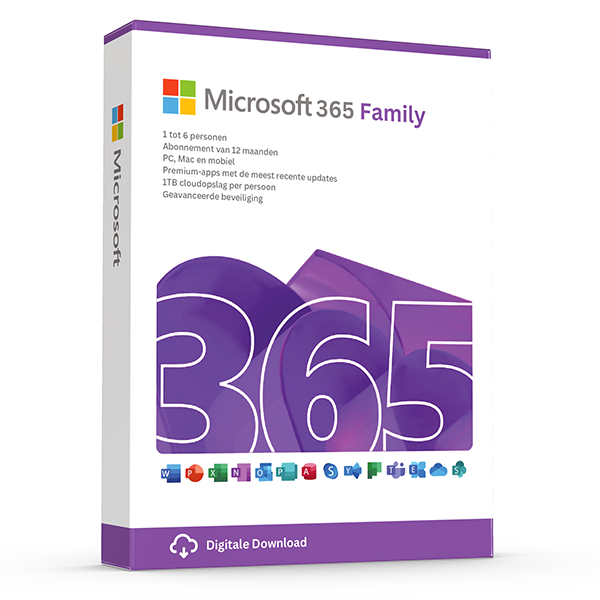
Microsoft 365 Family — 6 users · 30 devices
6 users · 1 year · 30 devices
Premium Office for up to 6 people with 1 TB OneDrive each.
≈ ¥5758.50 JPY — $35 prices are billed in eur. approximate jpy conversion shown for context only — your bank applies the final rate.
Trusted by buyers in Japan
東京 · 大阪 · 横浜 · 名古屋 · 札幌 · 福岡
Check the licence channel, not just whether the key activates
Microsoft distinguishes between retail, device-bound OEM and commercial volume licences. These channels affect installation, reassignment and proof of entitlement; they are not interchangeable labels for the same rights. Office LTSC Professional Plus 2024 is a volume-licensing edition, unlike retail Office Home 2024 or Office Home & Business 2024. Before choosing a Professional Plus offer for an individual PC, ask which licensing agreement grants your right to use it and what supporting documentation is supplied.
Successful activation is a technical check, not conclusive proof that a licence was properly supplied or assigned. Under Microsoft's Windows terms, activation alone does not establish that software is genuine or properly licensed. For business purchases in Japan, retain the invoice, product description and any applicable licensing documents together. If you need to transfer software later, check the terms for that exact product and acquisition channel rather than assuming every perpetual licence follows its owner.
- Confirm the full product name, edition and licensing channel before purchase.
- For volume-licensed Office, request the applicable agreement and evidence of entitlement.
- Do not treat a product key or activation screenshot as complete licensing documentation.
- Consult microsoft.com/useterms for retail terms and Microsoft's Product Terms for commercial licensing.
- Distinguish a seller's service guarantee from the usage rights Microsoft grants.
Prepare a Japanese-market PC for Windows 11 Pro
Start by opening Settings, System, About to identify the installed Windows edition and device specifications. Then check Settings, System, Activation to see whether Windows is already activated. A computer running Windows 11 Home can normally move to Pro through Change product key when supplied with an appropriate Pro licence. An edition upgrade is different from installing Windows on a new or erased drive, so establish which task you actually need before downloading installation media.
A Windows 11 Pro key does not waive Windows 11 hardware requirements. Microsoft specifies a supported processor, TPM 2.0 and UEFI firmware with Secure Boot capability, alongside memory and storage requirements. Run Microsoft's PC Health Check if compatibility is uncertain. Before an upgrade or reinstall, back up important files and save any BitLocker or device-encryption recovery key somewhere accessible without that PC. Changing firmware settings or hardware can trigger a recovery-key request.
- Use Settings to confirm Home, Pro or another edition; names such as Enterprise require different licensing.
- Check hardware eligibility with Microsoft's official PC Health Check tool.
- Keep the encryption recovery key separate from the encrypted computer.
- For a clean installation, select the edition covered by your licence.
- Do not assume an unsupported Windows 10 computer becomes supported by buying a Pro key.
Set up Japanese input and Office language options correctly
Japanese input, application menus and proofing tools are separate settings. On Windows 11, add Japanese through Settings, Time & language, Language & region, then check that Microsoft IME is available. You can type Japanese without changing every Windows menu to Japanese. In Office, use File, Options, Language to review the display language and authoring or proofing languages separately. Additional language components may need to be installed before all menus or checking tools match your preference.
On a Japanese-market laptop, also verify the physical keyboard layout. Japanese 106/109-key and US 101/102-key layouts place some symbols differently; an incorrect setting can make passwords, email addresses and spreadsheet formulas appear mistyped. Changing the keyboard layout does not change your licence. Windows Home Single Language has a separate restriction on changing the Windows display language, so inspect the exact edition if multilingual menus matter. Office's language configuration remains a separate consideration from Windows input.
- Use Windows key + Space to switch between installed input methods.
- Match the configured keyboard layout to the keyboard's printed keys.
- Test Japanese conversion and symbols such as @ before entering credentials.
- Check Office display language and proofing language independently.
- Use Microsoft's official language resources rather than third-party language installers.
Choose for your devices, then plan for reinstallations
Choose Office by platform and required applications before comparing subscription and perpetual models. Office LTSC Professional Plus 2024 is for Windows, not macOS, and includes Access, which is a PC-only application. Microsoft 365 Family supports sharing with up to five other people, with each person using their own Microsoft account and signing in on up to five devices simultaneously. Think in terms of each person's devices and account, rather than a pool of freely assignable installations.
A perpetual Office licence grants ongoing use of the licensed version under its terms; it does not include every future major release or indefinite security support. A Microsoft 365 subscription instead depends on an active subscription for its subscription benefits. Whichever model you choose, record the Microsoft account or organisational entitlement associated with the purchase where applicable. Before replacing a computer, establish whether reassignment is allowed and how you will obtain the correct installer and activate again.
- List required applications, especially Access, before selecting an Office edition.
- Check Windows versus macOS compatibility for the exact product, not just the Office brand.
- Give each Microsoft 365 Family participant their own account; do not share one password.
- Keep installation and entitlement records outside the computer being replaced.
- Check Microsoft's lifecycle information separately from the licence's duration.
Product and licensing checks before installation
| Product or channel | Important distinction | What to verify |
|---|---|---|
| Office LTSC Professional Plus 2024 | Windows-only Office edition supplied through volume licensing | Applicable licensing agreement, entitlement documentation and required applications |
| Office Home & Business 2024 | One-time purchase for one PC or Mac; includes Outlook and permits use at home or work | Platform requirements and transfer terms for the purchased licence |
| Microsoft 365 Family | Subscription for up to six people, each with their own account and up to five simultaneous device sign-ins | Who will accept sharing invitations and which devices each person uses |
| Windows 11 Pro, stand-alone retail | Microsoft's terms generally allow transfer to another device, with removal from the previous device | Whether the supplied licence is genuinely stand-alone retail and the target PC meets requirements |
| Windows supplied preinstalled on a PC | Microsoft's terms generally tie the licence to the licensed device; transfer to another user is with that device | Existing edition and activation status before buying an upgrade or replacement licence |
Frequently asked questions
Are these licenses valid in Japan?
Yes. All keys are genuine Microsoft licenses, activate against Microsoft's worldwide servers, and carry no geographic restrictions.
Do I pay local tax?
Japanese consumption tax 10% included on orders to JP billing addresses.
How fast is delivery?
5–30 minutes by email after payment confirmation, 24/7. Most orders arrive in under 10 minutes.
What happens if a key fails to activate?
We replace it free of charge or refund in full. Every key is covered by our lifetime activation guarantee.