Buying guide
· 4 min read· Updated 2026-05-20Fix activation error 0x80072F8F
Error 0x80072F8F means Windows can't reach Microsoft's activation servers over TLS. Here's exactly how to fix the root cause in 5 minutes.
- Activation
- Troubleshooting
- Windows 11
What the error means
Error 0x80072F8F translates to SEC_E_CERT_EXPIRED. Your PC tried to make a secure TLS connection to activation.sls.microsoft.com and the certificate validation failed.
There are exactly three root causes: system clock is wrong, your root certificate store is out of date, or your network is blocking the TLS handshake (corporate firewall, DPI, restrictive DNS).
Fix 1 — Correct the system clock
Settings → Time & language → Date & time. Turn 'Set time automatically' off then on. Verify the time zone is correct. Click 'Sync now' under Additional settings.
Fix 2 — Update root certificates
Run Windows Update — recent updates ship root certificate refreshes. If you're behind a proxy that strips updates, download the latest rootsupd.exe from Microsoft and run it manually.
Fix 3 — Check the network path
Try activation on a phone hotspot. If it works on cellular but fails on your office Wi-Fi, the corporate firewall is doing TLS inspection on the activation domain. Add activation.sls.microsoft.com and *.licensing.mp.microsoft.com to the allowlist.
- · Run nslookup activation.sls.microsoft.com — should return a Microsoft IP, not 0.0.0.0.
- · If using custom DNS (Pi-hole, NextDNS), check the blocklist for Microsoft telemetry rules that catch the activation domain.
- · Disable any third-party antivirus 'HTTPS scanning' temporarily and retry.
Frequently asked questions
- Does this error mean my key is bad?
- No. 0x80072F8F is a network/TLS issue, not a key issue. Microsoft hasn't even validated your key yet — the connection failed before that step.
Recommended licenses
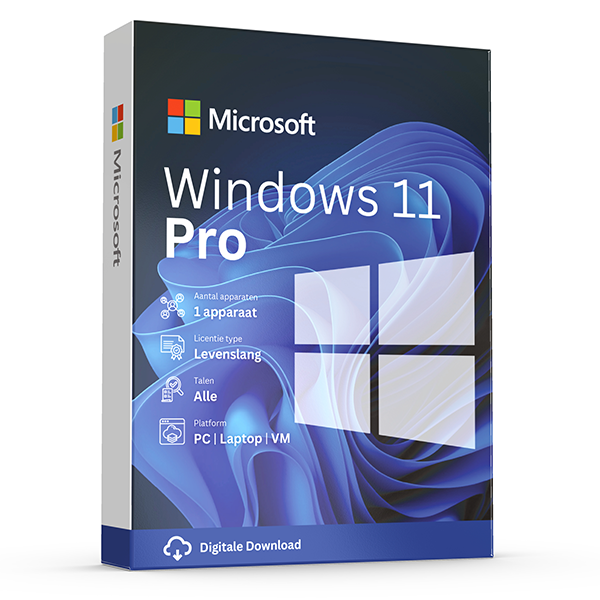
Windows 11 Pro
Retail · 1 PC · Lifetime
Professional edition with BitLocker, Hyper-V and Remote Desktop.
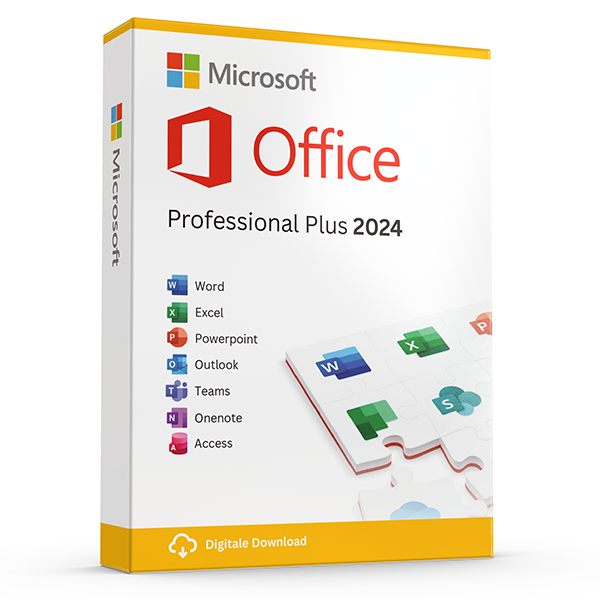
Office Professional Plus 2024 — 1 PC
Perpetual · 1 PC · Windows
The latest perpetual Office suite for one Windows PC.
Related guides
All guides
- Which Office version should you buy?
Office 2021, 2024 or Microsoft 365? A practical guide to picking the right Office edition by use case, hardware and budget.
- Windows Server licensing — the plain-English guide
Cores, CALs, Standard vs Datacenter, virtualization rights — Windows Server licensing demystified with real-world examples.
- SQL Server — Server+CAL vs Per-Core
Decide between SQL Server's two licensing models with a clear break-even calculation and worked examples.
- OEM vs Retail Windows keys
OEM Windows keys are cheap but tied to one motherboard. Retail keys are transferable. Here's exactly what changes and which you should buy.
- How to activate Windows 11
Step-by-step guide to activating Windows 11 with a retail product key — fresh install, upgrade from Windows 10, troubleshooting.
- How to install Office 2024
Complete step-by-step guide to installing Office 2024 from your product key, including the Office Deployment Tool route for Pro Plus.
- Office 2024 vs Microsoft 365 — which is better?
Head-to-head comparison of Office 2024 (one-time purchase) and Microsoft 365 (subscription) — total cost of ownership, cloud storage, multi-device support and feature differences.
- Windows 10 vs Windows 11 — upgrade decision guide
Windows 10 hit end-of-support in October 2025. Here's whether to upgrade in-place, buy a Windows 11 key, or stay on 10 with ESU.
- Windows 11 Home vs Pro — the honest comparison
BitLocker, Hyper-V, Remote Desktop, domain join — the seven Pro-only features that decide whether you should pay the upgrade.
- Office 2024 vs Office 2021
Three years of feature backports separate Office 2024 from Office 2021. Here's what's actually new and whether the price gap justifies the jump.
- Microsoft 365 Family vs Personal
M365 Personal covers one user. Family covers six and includes 6 TB of pooled OneDrive. The math, the catches and which you should buy.
- SQL Server Standard vs Enterprise
Enterprise costs roughly 4× Standard. The features that justify the gap are narrow but important. Decide with our cheat sheet.
- Best Office for students in 2026
Free Microsoft 365 from your university, perpetual Office 2024 Home & Student, or LibreOffice — the right pick by budget and degree.
- Transfer your Windows license to a new PC
Move your retail Windows 10 or 11 key to a new computer in 10 minutes — deactivate the old PC, link to your Microsoft account, reactivate on the new hardware.
- Office Deployment Tool walkthrough
Use the Office Deployment Tool (ODT) to install Office 2024 with the exact apps, language and update channel you need. Full XML reference inside.
- Windows 11 TPM bypass: the real risks
You can install Windows 11 on unsupported hardware by bypassing TPM 2.0 and Secure Boot — here are the real risks Microsoft warns about.
- Choose a Microsoft 365 Business plan
Microsoft sells four Business plans. Here's the decision tree, real per-user prices and the security cliff between Standard and Premium.
- Back up your Windows product key
Recover your Windows 10/11 product key from the registry, BIOS or Microsoft account — and save a copy somewhere safer than the sticker on the laptop.
- Uninstall old Office cleanly before Office 2024
Office 2016, 2019, 2021 and Microsoft 365 can leave activation conflicts when you install Office 2024. Here's the clean-uninstall procedure that always works.
- Upgrade to Windows Server 2025
Supported in-place upgrade paths to Windows Server 2025, the version-skip rules, downtime expectations and rollback options.
- Set up Outlook 2024 with IMAP
Add a Gmail, iCloud or generic IMAP account to Outlook 2024 in under 5 minutes — including the app-password workaround Google and Apple now require.
- Enable BitLocker on Windows 11 Pro
Turn on BitLocker drive encryption without losing your data — pre-flight checks, the TPM-only vs PIN modes, and recovery-key best practices.
- Activate Office without internet
No internet on the target PC? Activate Office 2024 (or any perpetual Office) by phone using the Microsoft activation IVR. Step-by-step.
- Windows 10 Extended Security Updates
Windows 10 reached end-of-support in October 2025. Extended Security Updates buys 1–3 more years of patches. Here's the price, the rules and the alternatives.